
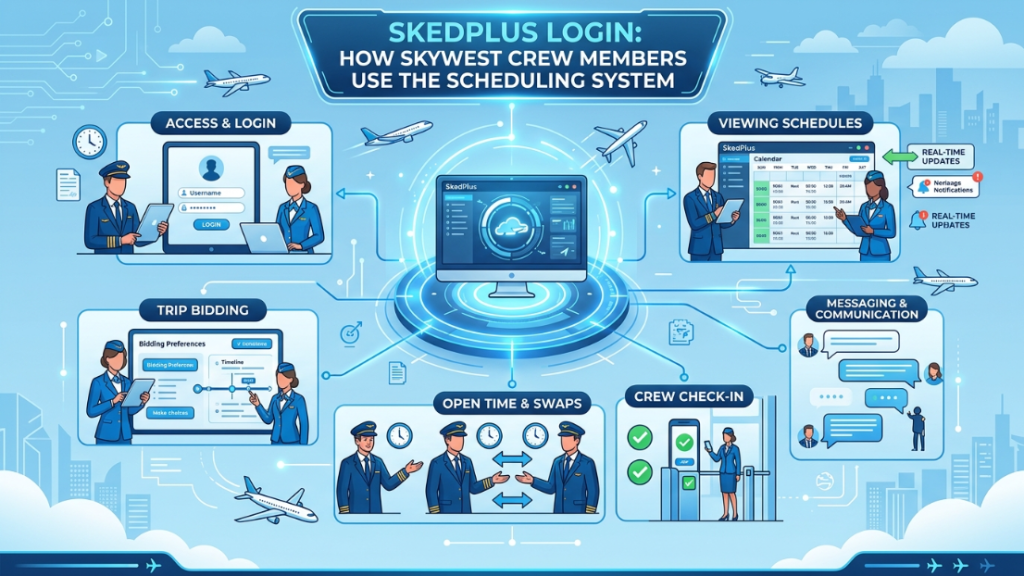
You land in Denver after a United Express turn on the Embraer 175 and need to confirm your next show time or see if that trip swap you posted actually cleared. You open your laptop or phone and go straight to Sked Plus. Pilots and flight attendants live in this system every single day, and ground crew sometimes check it for shift coverage too.
This page shows you exactly how SkyWest crew members use Sked Plus inside the SkyWestOnline portal. You will learn what it is, who relies on it, the fastest way to reach it, the full check-in process, how to view your bid line, trade trips, grab open time, request leave, and mobile tips that work on layovers. You will also see how to handle the most common Sked Plus questions and issues so you stop wasting time at the gate.
What Sked Plus Actually Is
Sked Plus is the scheduling and check-in module that lives inside SkyWestOnline. It handles your monthly bid, trip trades, reserve alerts, and the quick check-in you do before every flight. SkyWest built it specifically for crew so you see real-time changes from dispatch without calling anyone.
You do not need a separate login for Sked Plus. Your SkyWestOnline credentials open everything. The system pulls your personal data straight from the main dashboard, so your schedule stays accurate whether you fly Delta Connection out of Salt Lake City or United Express out of Chicago O’Hare.
Crew members call it Sked Plus or just Sked in the crew room. The shorthand comes from the old industry term for schedule, but here it always means the SkyWest tool.
Who Uses Sked Plus
Pilots and flight attendants use Sked Plus the most. You check your line, post trips you do not want, and grab open time during bidding windows. Reserve pilots watch for alerts and accept or decline assignments in seconds.
Flight attendants pull hotel lists and per diem estimates here before every trip. Ground crew and ramp agents sometimes log in for shift swaps at the 21 domiciles, but they spend less time than pilots and FAs. Maintenance techs rarely open it unless they need to confirm aircraft assignment changes.
The portal knows your role from your Employee ID and shows the right view automatically. Everyone at SkyWest with 16,000-plus employees sees the same clean interface once they log in.
How to Access Sked Plus
You have two easy ways in. After you complete your skywestonline login on the main dashboard, click the Schedule tab and Sked Plus loads right there.
For the fastest route, go straight to the direct URL: skywestonline.com/SKYW/SkedPlus/CheckIn.aspx. Bookmark it on your phone and laptop. It skips the full dashboard and drops you straight into check-in when you only need to confirm your next flight.
Both paths work on any device. The system requires the same Employee ID and password you already use for SkyWestOnline.
Go to the official SkyWestOnline login page → https://www.skywestonline.com/OO/Account/Login
Sked Plus Check-In Process Before Your Trip
Open the direct Sked Plus URL or the Schedule tab. Your next trip appears at the top with departure time, aircraft type, and gate information. Click the green Check-In button once you are ready for the flight.
The system records your show time and sends confirmation to dispatch. You can still view the full trip sequence, layover hotel, and any last-minute changes. If you fly multiple legs, Sked Plus shows each one separately so you know exactly when to be at the gate.
Do this step 24 hours before departure or as soon as your schedule drops. It takes less than 30 seconds and keeps you off the reserve list for that day.
Viewing Your Line and Bid-Line
Click the Bid-Line tab inside Sked Plus to see your full monthly schedule. Color blocks show trips, reserve days, and days off. Click any block for details like block times, aircraft, and partner airline code.
You can sort by date, aircraft type, or layover city. The view updates instantly when scheduling makes changes. Pilots and flight attendants check this tab daily during bid periods to plan their month.
Trading and Swapping Trips
The Trip Trade board sits right under your line. You post trips you want to drop and browse what others offer. Filter by date, aircraft, or domicile so you only see relevant swaps.
Once you find a match, click Accept and the system sends it to both schedulers for approval. Most trades clear within hours. You can also drop a trip into open time if no one wants it.
Open-Time Pickup
Open time shows all unassigned trips across the system. You filter by domicile, aircraft, or dates you are available. Click the trip you want and confirm the pickup.
The portal shows how many hours it adds to your monthly total so you stay under your guarantee. Reserve pilots use this section constantly to build their schedule.
Leave Requests and PTO
Submit time-off requests directly in Sked Plus. The calendar shows available days based on staffing at your domicile. Enter the dates and reason, then submit. You receive approval or denial in the same tab.
PTO follows the same process. The system tracks your balance and updates your line automatically once approved.
Sked Plus Mobile Tips for Crew on Layovers
The site works well in your phone browser even though no dedicated Sked Plus app exists. Open the direct URL on cellular data so hotel Wi-Fi does not kick you out mid-trade. Rotate your phone for the full monthly view when you check your line in a hotel room.
Bookmark the check-in page on your home screen. The fields resize automatically and the Check-In button stays easy to tap. Pilots on layovers in Los Angeles or Atlanta use this method constantly to stay current without pulling out a laptop.
Common Sked Plus Questions and Issues
Most problems come from the same few spots. If the check-in button stays gray, you need to log in again or clear your browser cache. Trip trades sometimes sit pending because the other crew member has not been confirmed yet. Open time fills fast during peak months, so refresh the page often.
If you see an error after login, note the code and call the IT Help Desk at 435-634-3271 during business hours. The team can reset your session or check your account on the spot.
Here is the quick reference for the issues you will hit most often:
| Issue You See | What Usually Causes It | Fix That Works Fast |
| Check-in button grayed out | Not logged in or session timed out | Log in again or use direct URL |
| Trip trade pending forever | Other crew members did not accept | Send a quick message or drop it |
| Open time shows no trips | Filters too narrow | Clear all filters and refresh |
| Mobile view looks broken | Old browser on phone | Update Chrome or Safari |
| Line does not update | Scheduling change still processing | Refresh page or wait 5 minutes |
Frequently Asked Questions
What exactly is Sked Plus?
Sked Plus is the scheduling and check-in tool inside SkyWestOnline. Pilots and flight attendants use it to view their line, trade trips, and check in for every flight.
Who needs to use Sked Plus?
Pilots and flight attendants use it daily. Reserve pilots watch for alerts and ground crew sometimes check it for shift swaps. The portal shows the right view for your role.
How do I reach Sked Plus without the full dashboard?
Go straight to skywestonline.com/SKYW/SkedPlus/CheckIn.aspx. Bookmark it so you can check in or view your line in seconds.
What is the Sked Plus check-in process?
Open the page, find your next trip, and click the green Check-In button. It records your show time and sends confirmation to dispatch.
How do I trade a trip in Sked Plus?
Go to the Trip Trade board, post the trip you want to drop, and browse offers. Accept any match and wait for scheduler approval.
Can I pick up open time in Sked Plus?
Yes. Filter the open-time board by date and aircraft, then click the trip you want and confirm the pickup.
How do I submit a leave request?
Click the Time Off tab, pick your dates on the calendar, add the reason, and submit. You see approval status in the same screen.
Does Sked Plus work well on my phone?
Yes. The site is mobile-optimized. Use cellular data on layovers and bookmark the direct check-in URL for fastest access.
What does “sked” mean at SkyWest?
Crew members shortened the schedule to “sked.” Sked Plus is the official SkyWest tool that handles your personal schedule and check-in.
Why does my Sked Plus line not match the paper bid?
The portal updates live. Refresh the page or wait a few minutes after scheduling posts changes.
Can part-time crew members use Sked Plus?
Yes. Everyone with an active SkyWestOnline login accesses the same scheduling tools once they clear onboarding.
Who do I call if Sked Plus will not load?
Call the IT Help Desk at 435-634-3271 during business hours. Have your Employee ID and the exact error ready.